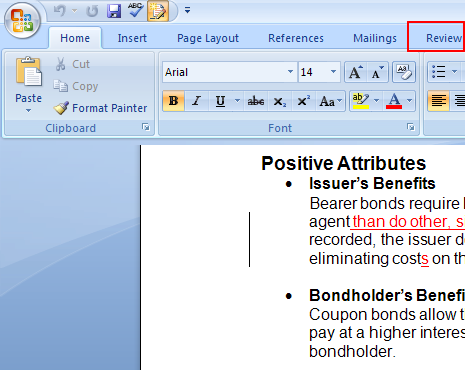
Step 1:
To remove editor comments in Microsoft Word 2007, open your document, click on the Review tab, highlighted in red in the example below.
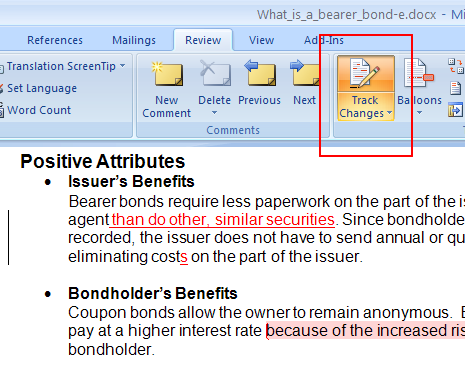
Step 2:
In this screenshot the Track Changes icon is illuminated, as circled in red. You will need to disable this feature before you continue. If you do not turn this feature off, all of the revisions that you make to your document will be tracked on the right-hand side of the document.

- With a Microsoft 365 12‑month subscription, you can create, organize, and get things done.
- Bring out your best with premium Office apps, including Word, Excel, and PowerPoint.
- Easily access, edit, and share files and photos across all devices with 1 TB of OneDrive cloud storage.
- Keep it all together with Outlook, an ad‑free app for your email, calendars, to‑do lists and contacts plus security tools that keep your information protected.
- Protect your files with advanced security features like built‑in ransomware detection and recovery, and you can use two‑step identity verification to access your most important files in OneDrive Personal Vault.

Step 3:
Once the Track Changes feature has been disabled, you can use the Delete, Previous, or Next buttons to toggle from one correction to another.
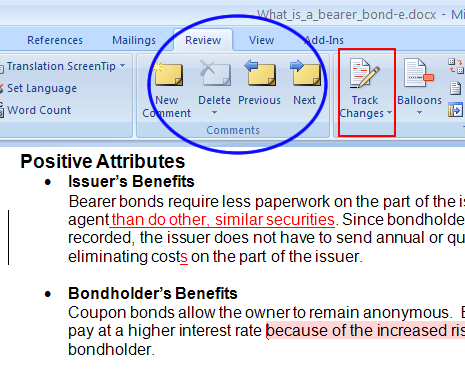
Step 4:
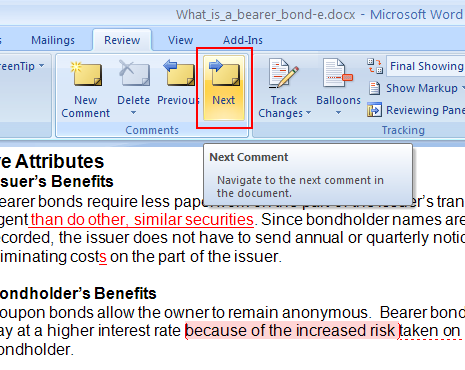
Click Next, circled in red, to move to the first editor comment.
Step 4a:
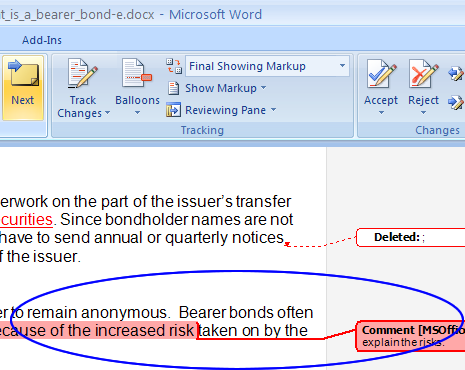
Notice that the first comment is highlighted in dark red. Clicking Delete will delete the comment. You should consider what is being suggested or asked in the comment before deleting it.

- Essentials for productivity: Office Home and Student 2021.
- Classic Office apps: Word, Excel, and PowerPoint.
- Compatible with Windows 11, Windows 10, MAC.
- Ideal for students, perfect for home or school use.
- No subscription required.
Step 5:
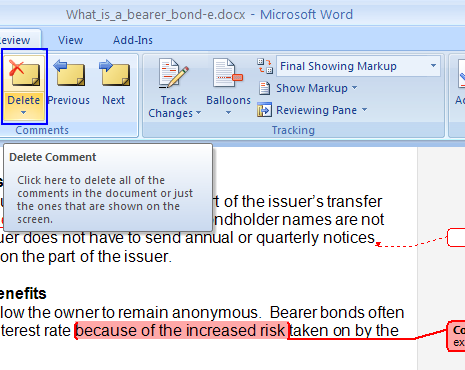
Click Delete to remove the editor comment from your document.
Step 5a:
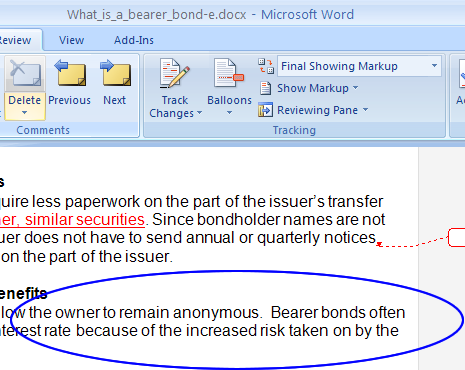
The following screenshot shows that the comment, which is circled in blue, has been removed from your document.